
This Guide helps staff, faculty, and students to know about the passwordless sign-in method with Microsoft Authenticator.
What is the passwordless sign-in method?
The passwordless sign-in method allows you to sign in to your account without entering a password.
Instead, you verify your identity using:
-
- The Microsoft Authenticator app notification
- A security key
- SMS or email verification code
It is more secure and convenient than using a password.
Prerequisites
- Install Microsoft Authenticator and sign in with your CEIBS account
- Please reference the guide - How to Install Microsoft Authenticator on iOS
- Please reference the guide - How to Install Microsoft Authenticator on iOS
- We highly recommend that you add your phone number as a sign-in method first.
- Please reference the guide - How to Use SMS for MFA
Set up Passwordless Sign-in Method on iOS.
- Open the Microsoft Authenticator app on your iOS device.
- Sign in with your CEIBS account and follow the instructions in Guide: How to Install Microsoft Authenticator on iOS.
- Set up passwordless sign-in when prompted by the app.
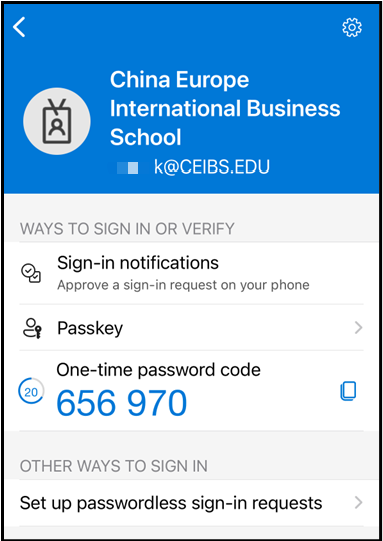
- Confirm your identity via the notification or verification code.
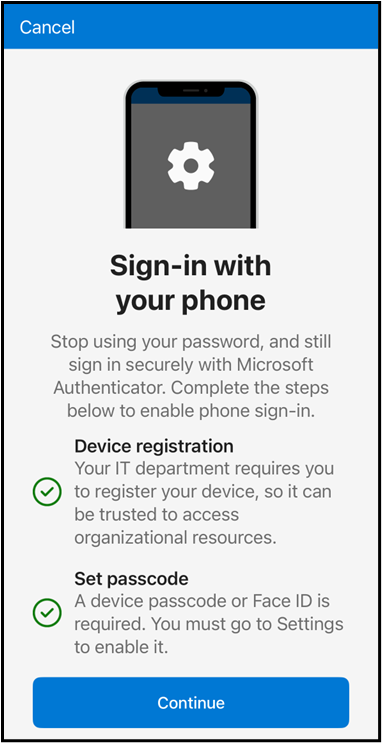
- Once setup is complete, you can use passwordless sign-in for your CEIBS account.
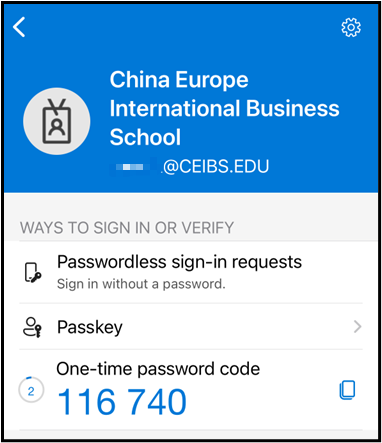
- Setup complete.
Try to sign in to https://portal.office.com with the passwordless method.
- Go to the Microsoft website and enter your CEIBS email address, then click Next.
- When prompted, select Use an app instead.
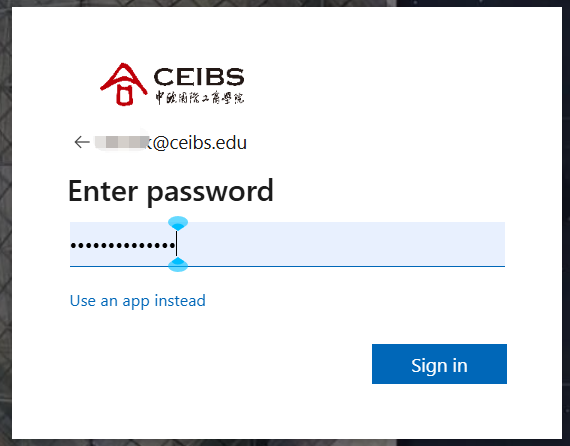
- A two-number code will prompt on the page.
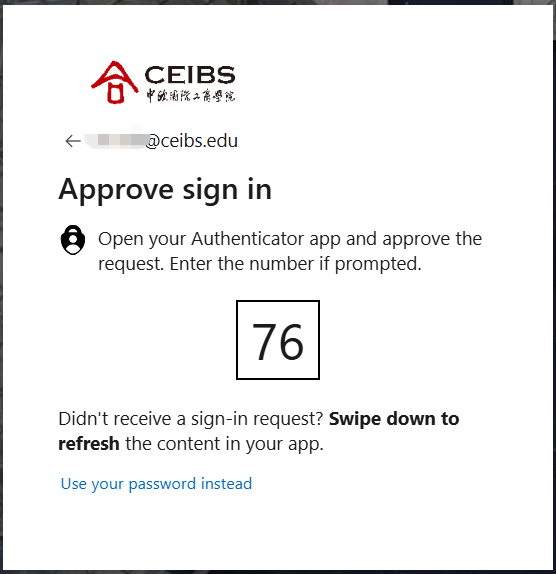
- A notification will be sent to your iOS device.
- On your phone, open the Microsoft Authenticator app.
- Approve the sign-in request and verify your identity (e.g., with PIN or biometrics).
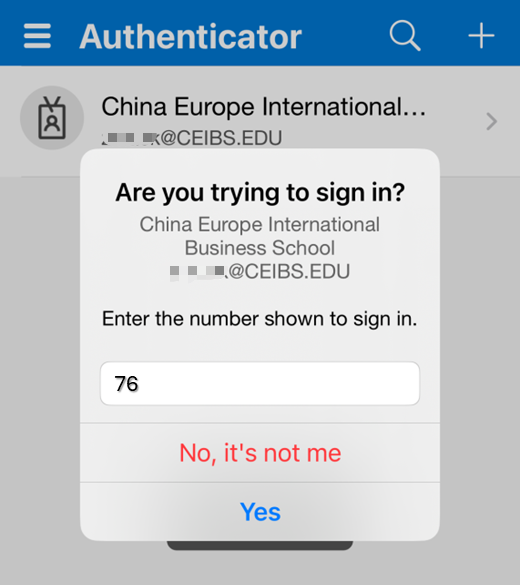
- Return to the website; you will be signed in automatically without a password.
- End of guide.