
This guide helps staff, faculty, and students connect to the CEIBS-A wireless network on campus.
Applicable to Windows 10/11
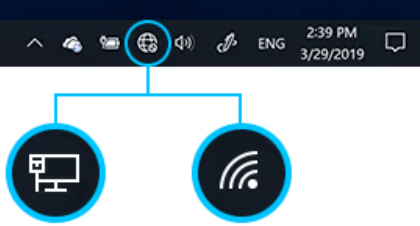
- Click the wireless connection icon in the taskbar at the bottom right of the screen (it displays a globe icon when there is no network connection).
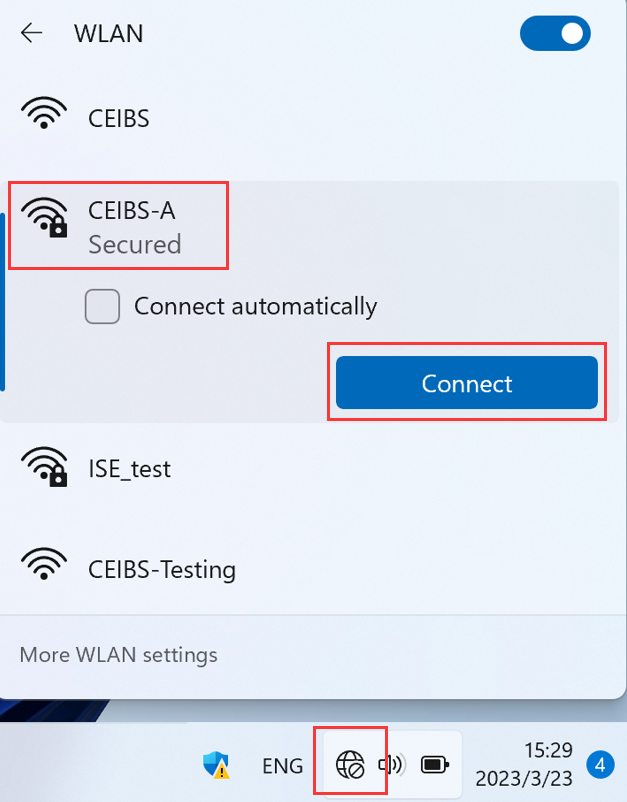
- Choose CEIBS-A and click Connect (checking " Connect automatically is recommended).
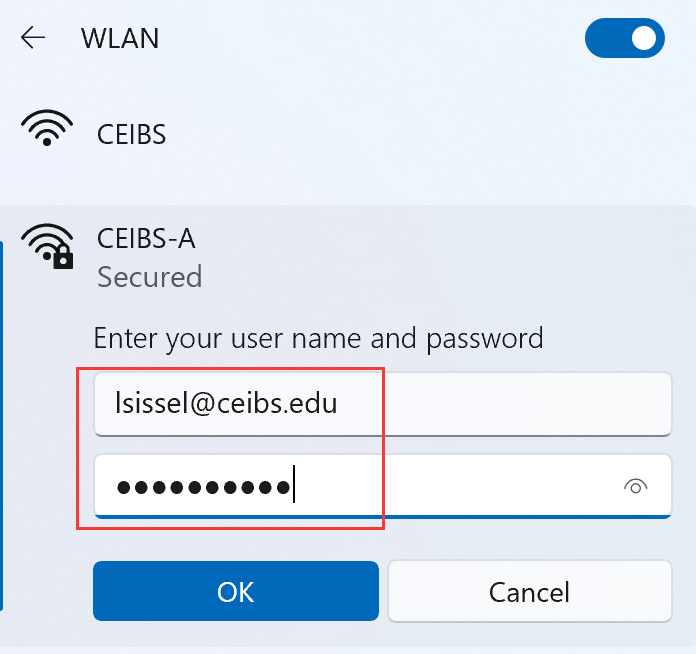
- Enter your CEIBS account as the username and enter your password, then click OK.
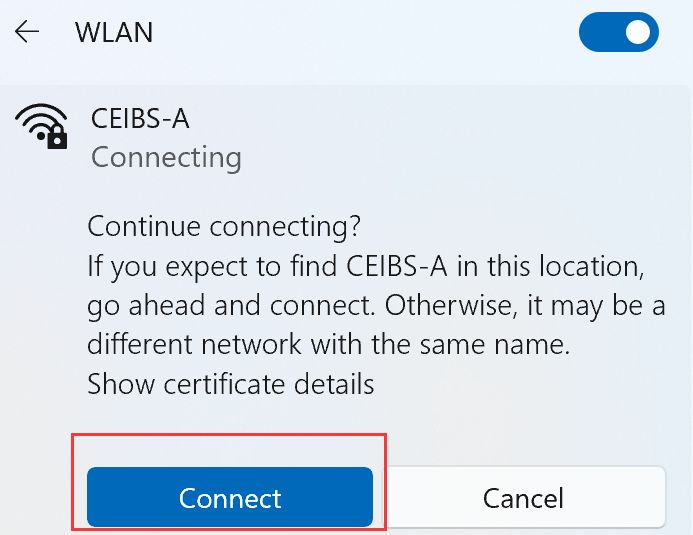
- Prompt Continue connecting, click Connect to complete.
- Setup complete.