
This guide helps staff, faculty, and students learn how to share calendars and open shared calendars.
Set up calendar permissions:
- Open legacy Outlook.
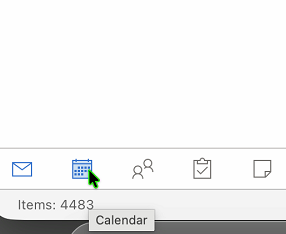
- Click the Calendar icon at the bottom.
-
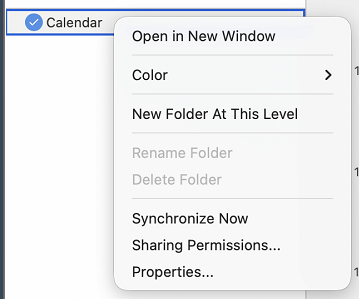
Right‑click your calendar in the left pane, select Sharing Permissions.
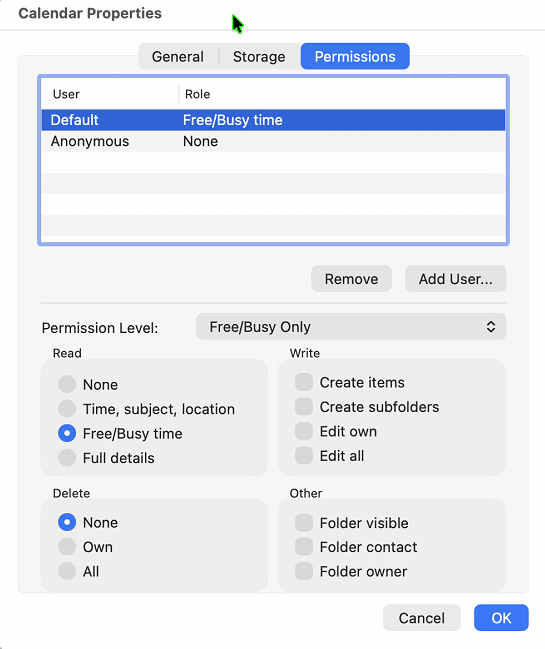
- Click Add User to add a person.
-
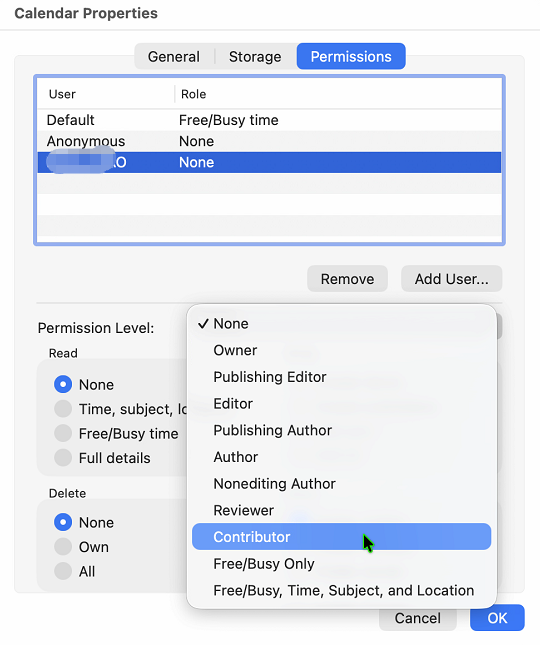
Set the permission level (e.g., Reviewer or Editor), then click OK.
- Setup Complete.
Add a shared calendar:
- Open legacy Outlook.
- Click the Calendar icon at the bottom of the navigation pane.
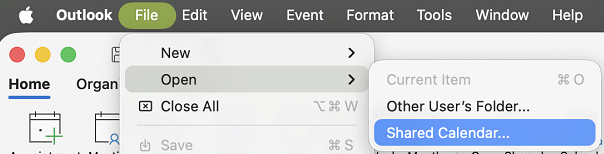
- On the menu bar, click File > Open > Shared Calendar….
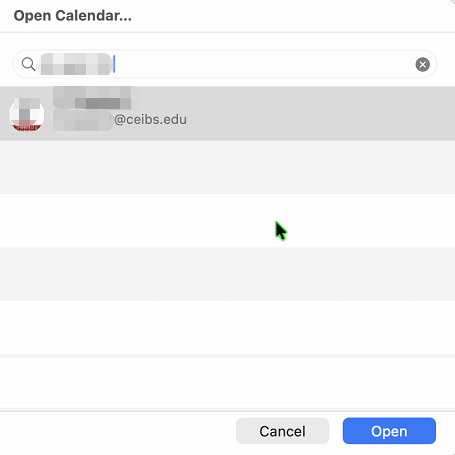
- Enter the name or email address of the calendar owner, select the person, and click Open.
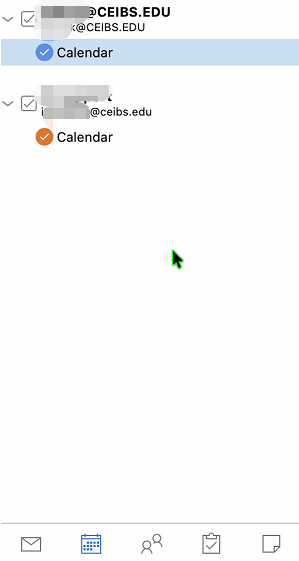
- The shared calendar will appear in your calendar list.
- End of guide.