
This guide helps visitors connect to the CEIBS wireless network on campus.
Applicable to Windows 10/11
- Click the wireless connection icon in the taskbar at the bottom right of the screen (it displays a globe icon when there is no network connection).
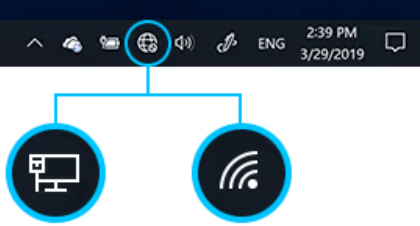
- Choose CEIBS to connect.

- Authentication
- Vistors
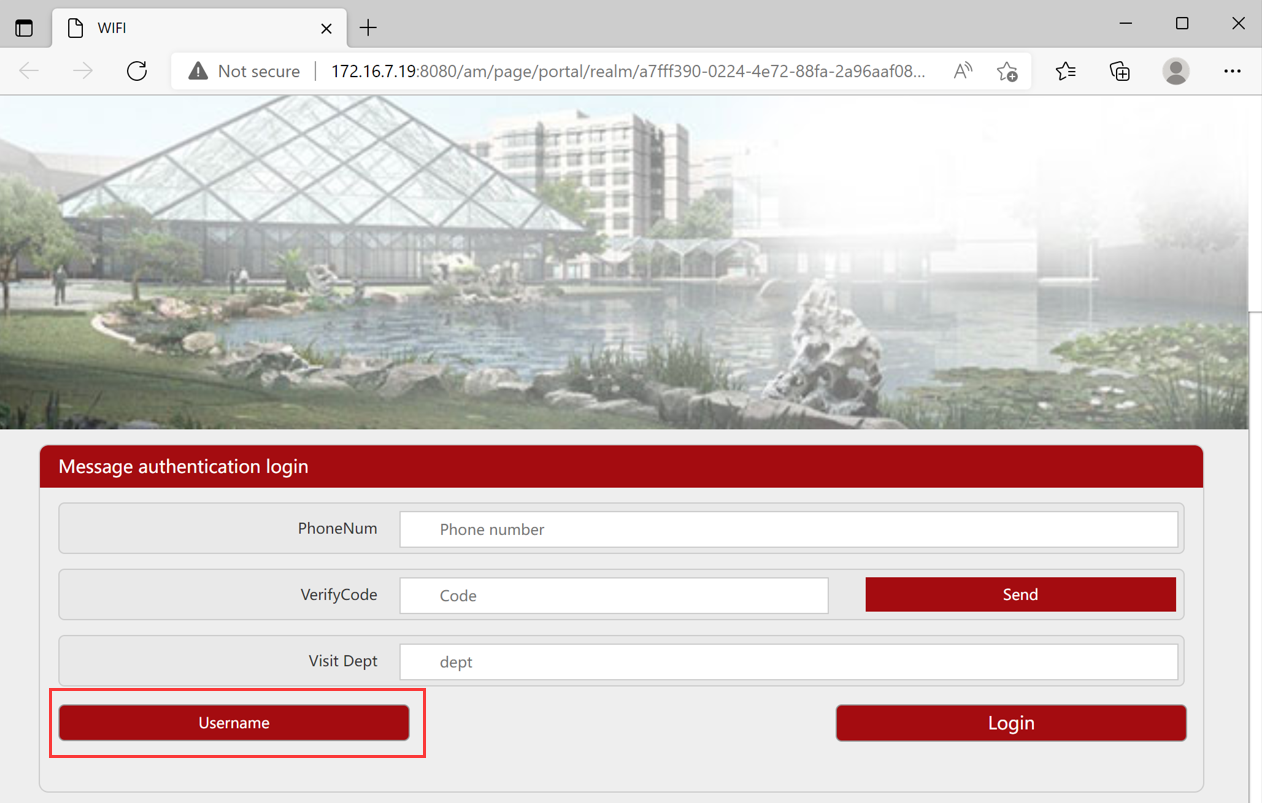
- Enter PhoneNum, Visit Dept on the pop-up Message authentication login page, then click Send.
- After the Send Success window pops up, click Confirm.
- You will receive an SMS with the verification code on your mobile phone.
- Enter the VerifyCode on the webpage on your computer and click Login.
- EE Students
- For some students of EE courses, select Username on the pop-up Message authentication login page,
- Enter your Username and Password on the User authentication login page and click Login.
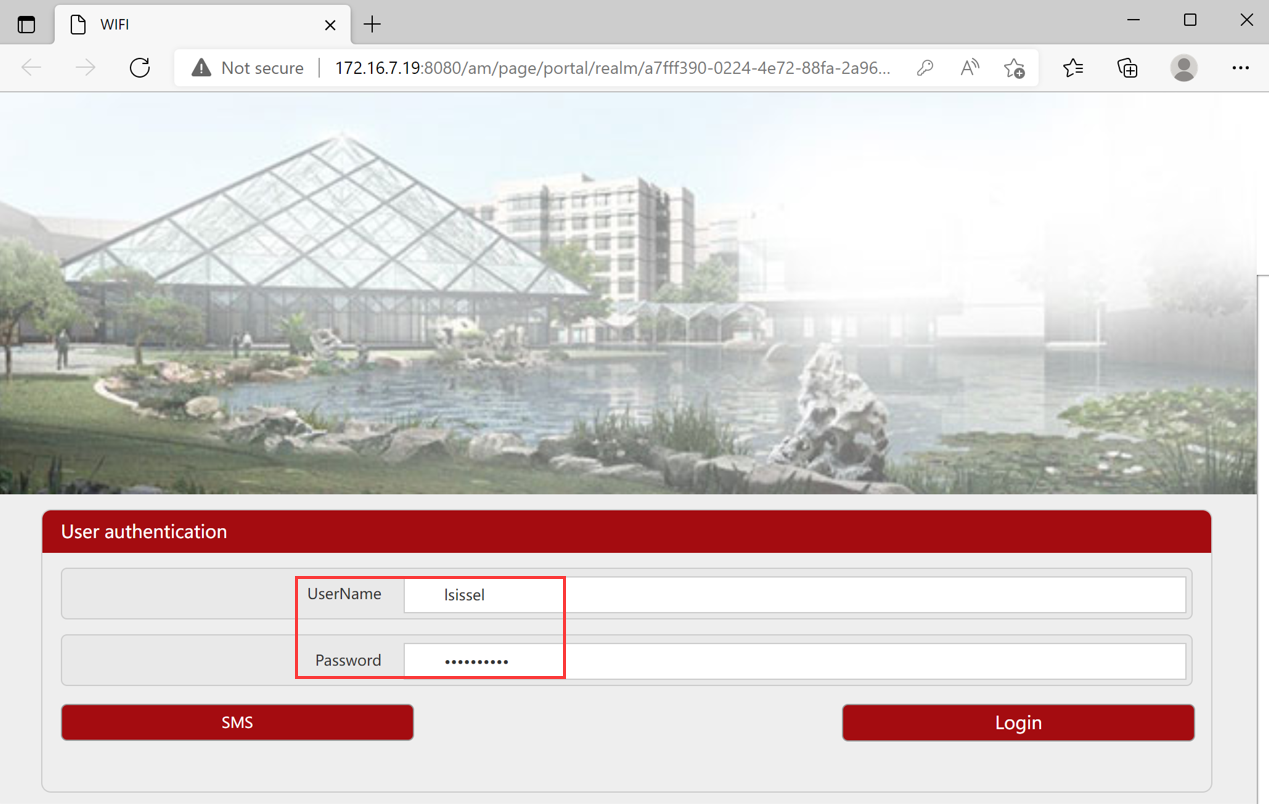
- For some students of EE courses, select Username on the pop-up Message authentication login page,
- Vistors
- The page opens normally; then close the window.

- Setup complete.