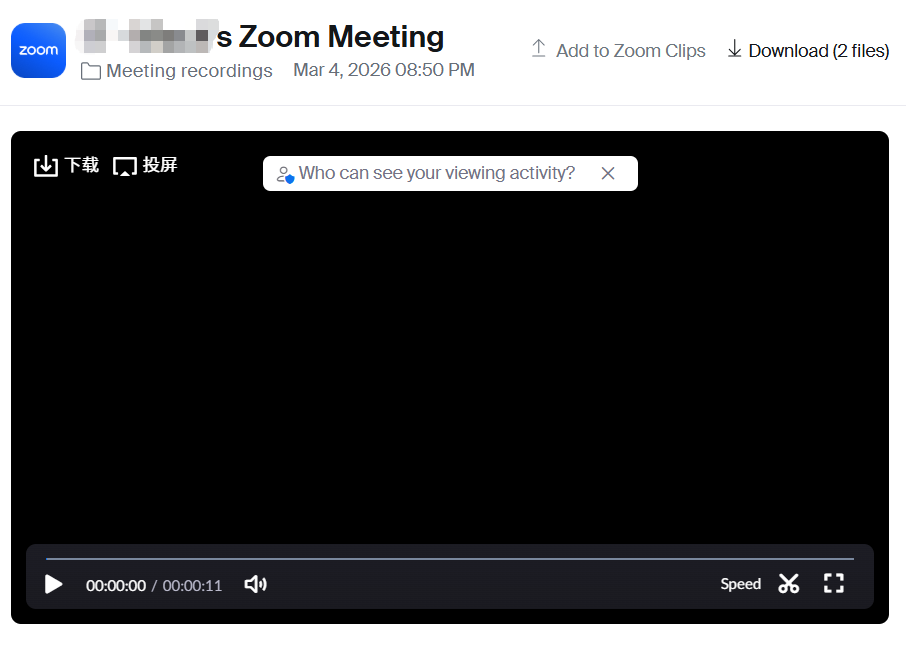
This guide helps staff to know how to share Zoom recording files.
Prerequisites
- You have a Zoom account with a license.
- You have completed a meeting with cloud recording enabled.
Share a Cloud Recording
- Sign in to the Zoom desktop client or web portal(https://ceibs.zoom.us) via SSO with your CEIBS account and Password.
- Go to Recordings > Cloud Recordings.
- In Zoom Client, select Open recording in the Home tab, select Cloud Recordings.
- In the web portal, select Recordings & Transcripts in the left-side menu list, select Cloud recordings.
- Select the meeting you want to share and click its thumbnail to open.
- Click the Share button.
- Select the settings icon in the top-right corner.
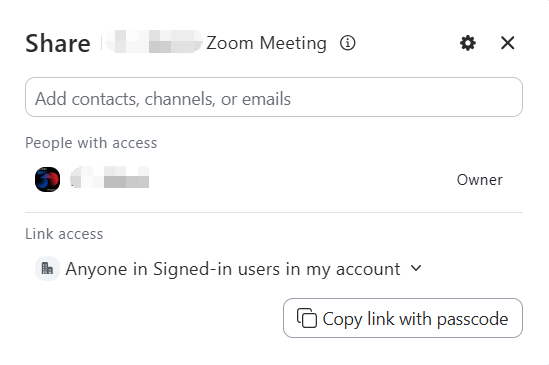
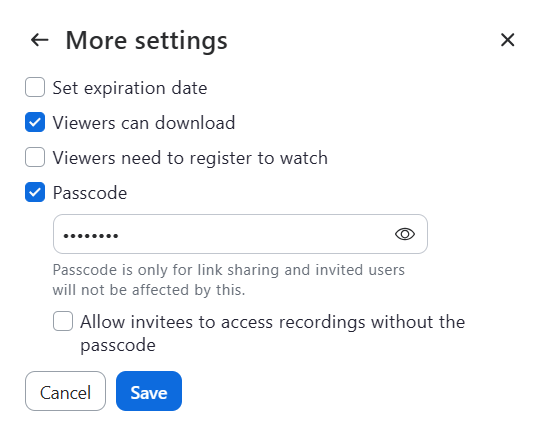
- Adjust sharing settings (e.g., set a passcode, expiration date, download permission, etc.), then select Save.
- Click Copy link and passcode.
- Paste the link and passcode into an email, chat, or document to share.
Advanced: Share with Specific People
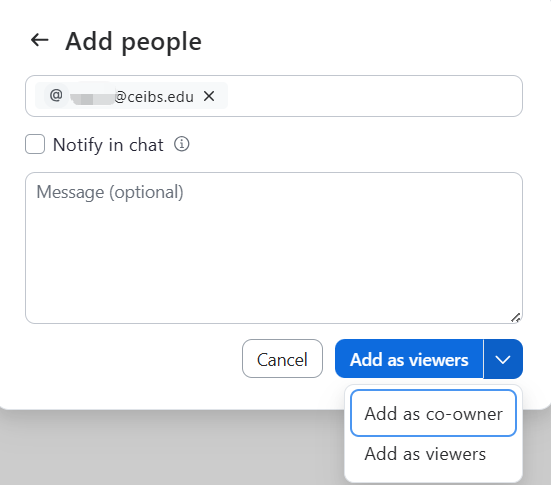
- In the sharing window, enter CEIBS email addresses under Share.
- Click Add as viewers, then recipients will receive an email with the recording link.
- After the recipient receives the email, they can view or download the video.