
This guide helps alumni use classic Outlook to back up calendars and contacts from their CEIBS email account and import them into their personal or alumni email accounts.
Applicable for Outlook for Mac 2016/2019/2021/2024/M365
Important:
This feature is only available in Legacy Outlook for Mac. Click on the Help menu and select Revert to Legacy Outlook. For more details, please see the link here.
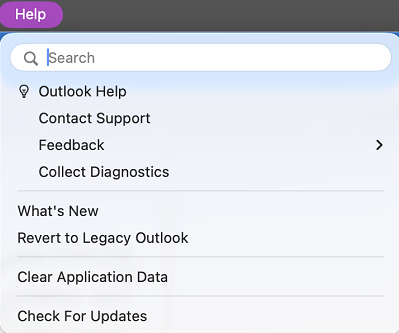
Accounts added in the new Outlook for Mac will not automatically be added to Legacy Outlook, and vice versa.
Back up Calendar or Contacts:
-
On the Tools tab, choose Export.
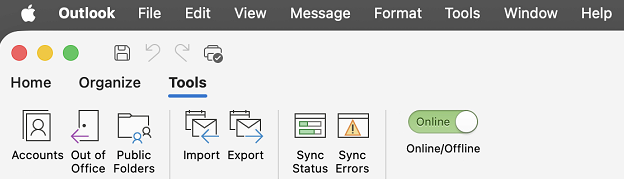
Note: Don't see the Export button? Make sure you have the latest version of Outlook. On the Outlook Help menu, click Check for Updates. If all Outlook updates are applied and you still don't see the Export button, look for Export on the Outlook File menu.
-
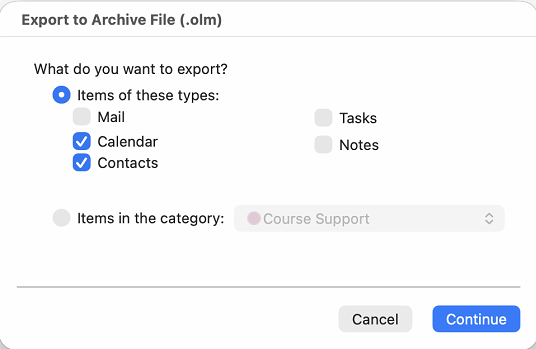
In the Export to Archive File (.olm) box, check the items you want to export, and choose Continue.
-
In the Save archive file as box, either select Where, or from under Favorites choose the Downloads folder, and select Save.
-
Once your data has been exported, you'll get a notification. Choose Finish.
-
End of guide.
Restore Calendar or Contacts:
-
In Outlook for Mac, on the Tools tab, choose Import.
-
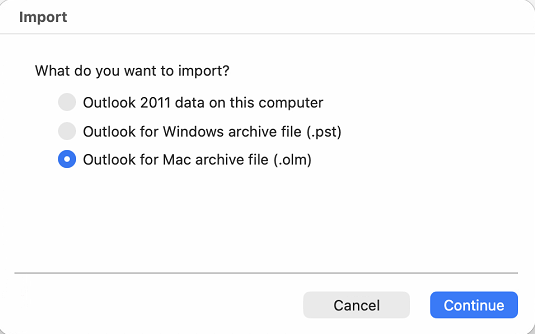
In the Import box, select Outlook for Mac archive file (.olm) > Continue.
-
Locate the .olm file on your Mac, and then choose Import.
-
Imported items appear on the navigation panes (Calendar, People) under On My Computer. For example, calendar items are in the navigation pane on the Calendar tab, and contacts are in the navigation pane on the People tab.
- End of guide.